Preperation – Add league players, edit tournaments, and configure visuals.
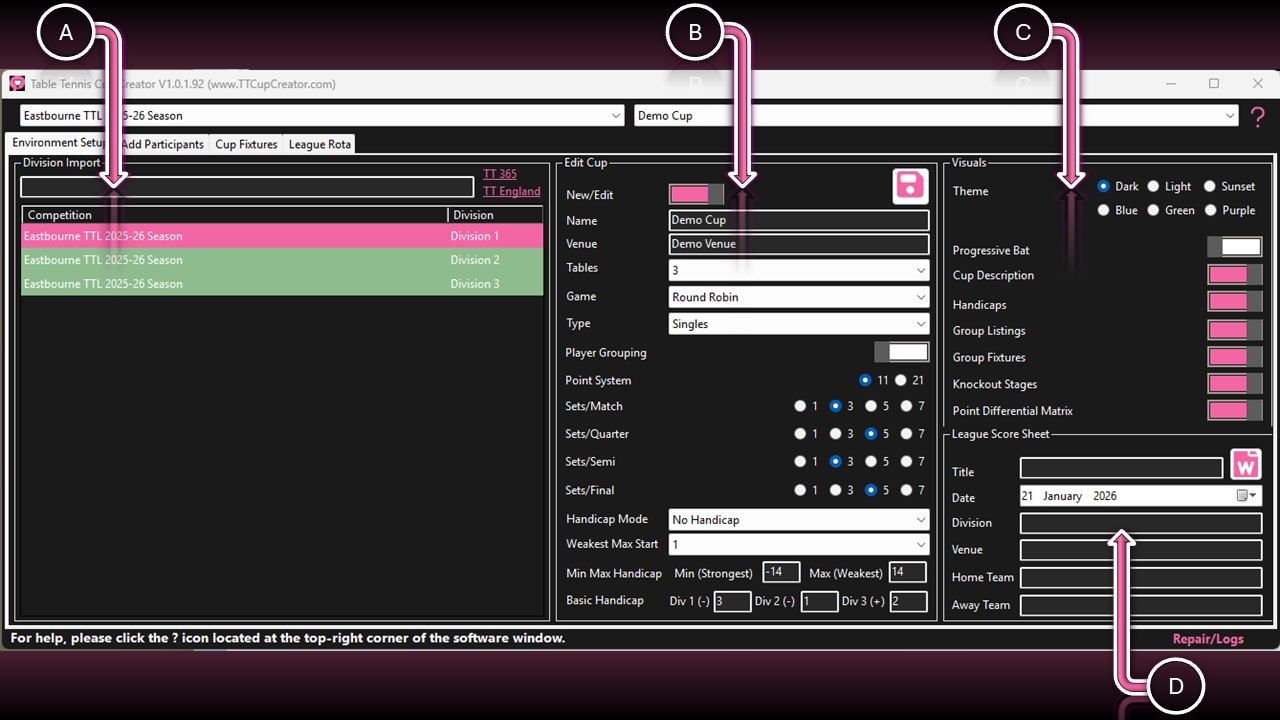
A. Divisions
⚠️ Advanced Handicaps use all divisions from a single league to calculate played points. For best results, import all divisions.
| Source | Step | Action |
|---|---|---|
| Table Tennis England | 1 | Open Table Tennis England (TTE): https://www.ttleagues.com |
| 2 | Select league > Fixtures and Results. | |
| 3 | Fixtures > Division (Archives for previous Divisions). | |
| 4 | Copy Division ID from the URL after /division/ | |
| 5 | Paste Division ID into the TextBox and press Enter (comma-separated for multiple divisions). | |
| Table Tennis 365 | 1 | Open Table Tennis 365: https://www.tabletennis365.com |
| 2 | Select the required League. | |
| 3 | Select Fixtures and Results | |
| 4 | Under Player Averages, select All Divisions. | |
| 5 | Chose each division from the drop-down list. | |
| 6 | Paste the full URL into the TextBox and press Enter. |
| Function | Interaction | Description |
|---|---|---|
| Add Division/s | Right Click Row/s | Restore a previously deleted division. |
| Delete Division/s | Right Click Row/s | Deletes the selected division. Rows turn red. |
B. Tournament
| Function | Interaction | Description |
|---|---|---|
| General | New/Edit Switch | Switch between current tournament and creating a new one. |
| Save Button | Always Save after any changes. | |
| Event Details | Name Input Field | Tournament name. |
| Venue Input Field | Event location. | |
| Tables Selector | Number of tables running simultaneously. |
Game Format
| Function | Interaction | Description |
|---|---|---|
| Group Round Robin | Selector | Players in groups; multiple matches per player. |
| All vs All | Every player faces all others; ideal for small groups. | |
| Single Elimination | One loss = elimination. | |
| Double Elimination | Losers enter a secondary bracket. | |
| Swiss System | Players paired each round by skill or record. | |
| Pyramid Tournament | Players challenge higher-ranked participants. | |
| Team Tournament (6 players) | UK league-format match (9 singles and 1 double). | |
| Table Tennis Baseball | Creative format using a single table. Batters Vs Fielders | |
| Revolver Doubles | Rotate partners and opponents each match; individual scoring. | |
| Jim West Handicap | Handicap tournament for multiple clubs (letters for handicap). |
Game Settings
| Function | Interaction | Description |
|---|---|---|
| Type | Selector |
Singles (1v1) or Doubles (2v2). ⚠️ S+W ticked pairs strongest with weakest, else random. |
| Player Grouping | Switch (On/Off) | ON = leftover players added to existing groups. OFF = new groups created. |
| Points System | Option Buttons | 11-point (modern) or 21-point (traditional). |
| Sets per Match / Quarter / Semi / Finals | Option Buttons | 1, 3, 5, or 7 (best-of). |
Handicap Modes
⚠️ See also: Advanced Handicaps
| Function | Interaction | Description |
|---|---|---|
| No Handicap | Selector | No handicap is applied. |
| Basic Handicap | Not recommended. Uses win/loss totals. | |
| Elo V1 (Divisional) | Highly recommended, use this if unsure. | |
| Elo V2 (Points-Based) | Recommended when divisions are not present. | |
| Glicko-2 Engine (Experimental) | Experimental. Do not use. |
Handicap Options
| Function | Interaction | Description |
|---|---|---|
| Weakest Max Start | Selector | Highest starting point for the weakest player (e.g. 14 for a 21-point game). |
| Min / Max Handicap | Input fields | Final Handicap range (min–max). |
| Basic Handicap | Input fields | Division 1 & 2 typically negative; Division 3 positive. |
C. Visuals
⚠️ Exported fixtures display options
| Function | Interaction | Description |
|---|---|---|
| Progressive Bat | Switch (On/Off) | Yes / No |
| Cup Description | Yes / No | |
| Handicaps | Yes / No | |
| Group Listings | Yes / No | |
| Group Fixtures | Yes / No | |
| Knockout Stages | Yes / No | |
| Point Differential Matrix |
Yes / No ⚠️ The matrix displays up to 26 players due to page size limits. |
D. League Score Sheet
| Function | Interaction | Description |
|---|---|---|
| Options | Input Fields | Provide the information to include on the score-sheet. |
| Generate | Button | Create the league score-sheet. |